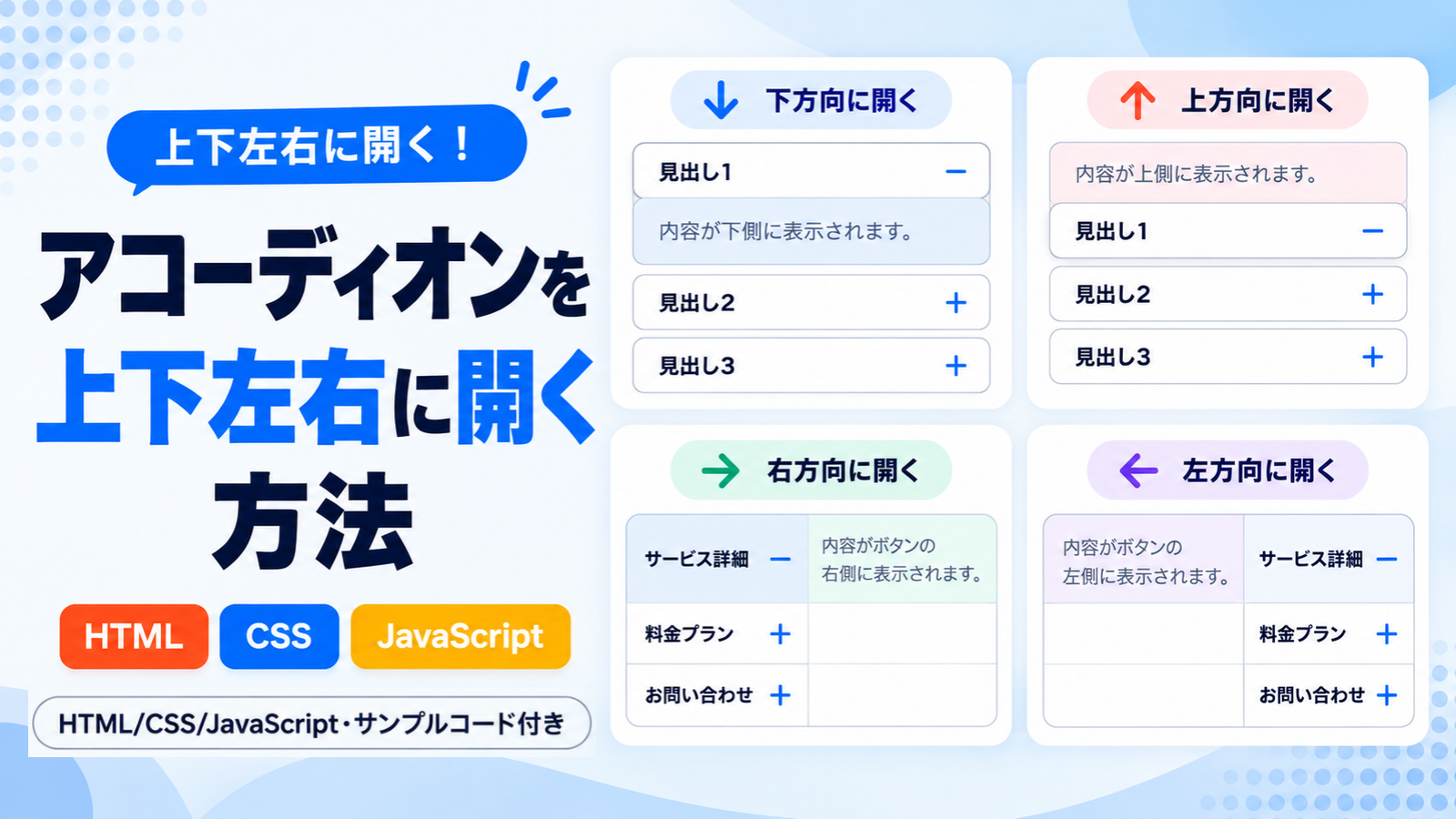
アコーディオンは、見出しをクリックすると隠れていた内容が表示され、もう一度クリックすると閉じる仕組みです。一般的には見出しの下側に内容が表示されますが、CSSで見出しと内容の配置を調整することで、上・下・左・右の4方向に開くアコーディオンを作成できます。
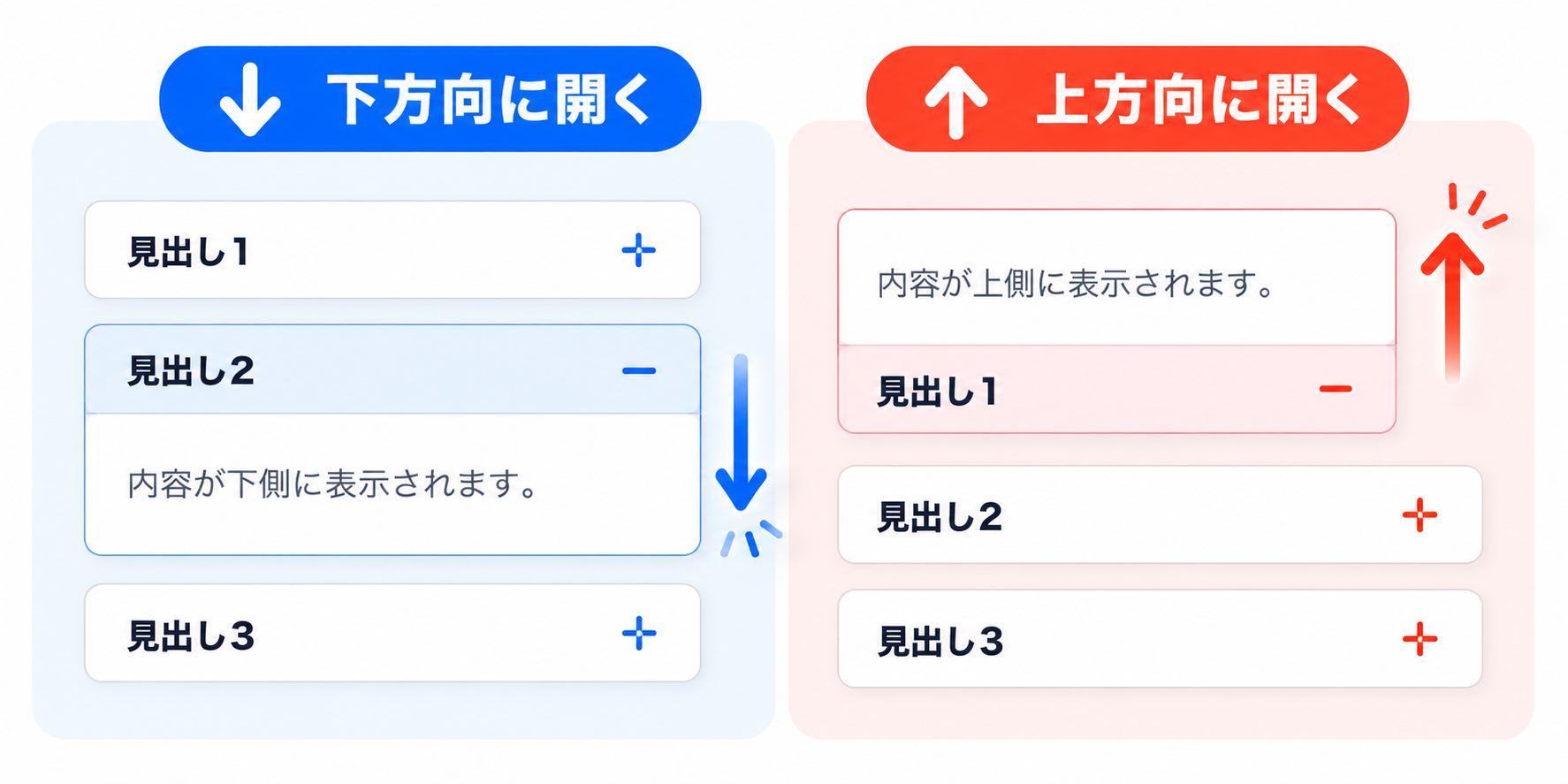
下方向に開くアコーディオンは、見出しの下側に内容が表示される基本的な形式です。一方、上方向に開くアコーディオンでは、見出しの上側に内容が表示されます。どちらも縦方向に内容を展開しますが、見出しを基準に内容が表示される位置が異なります。
右方向に開くアコーディオンは、見出しボタンを左側に配置し、その右側に内容を表示します。反対に、左方向に開くアコーディオンでは、見出しボタンを右側に配置し、内容を左側に表示します。上下方向とは異なり、見出しと内容が横に並ぶため、横方向のスペースを活用したレイアウトになります。
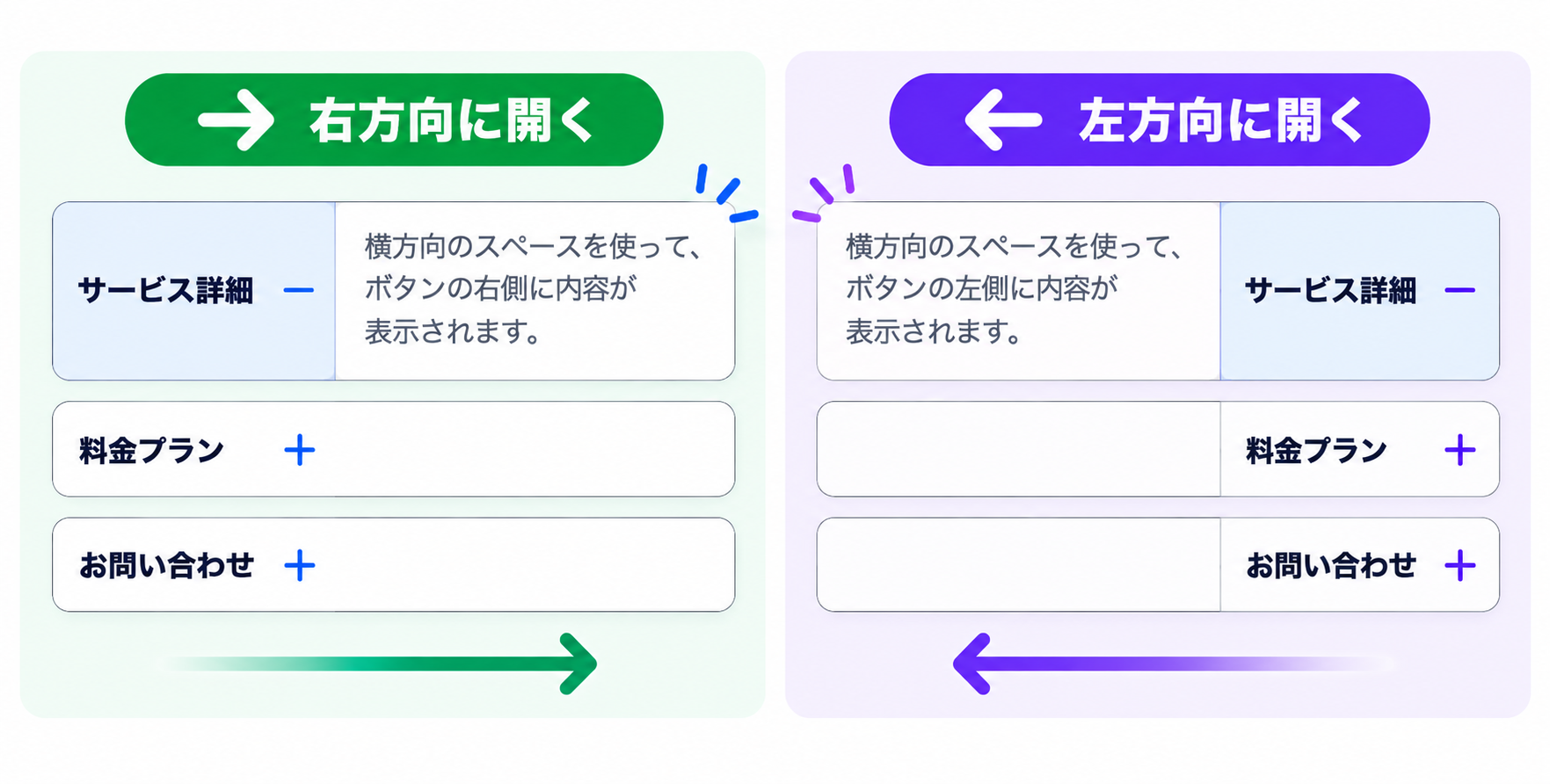
今回は、上下左右の4方向に開くアコーディオンの作り方を紹介します。4種類ともHTMLの基本構造とJavaScriptによる開閉処理は共通しており、主にCSSのflex-directionを変更することで表示位置を調整しています。デモでは4方向の動作を比較でき、それぞれのHTML・CSS・JavaScriptのサンプルコードとZIPファイルも用意しています。
デモ
下方向に開くアコーディオン
見出しをクリックすると、内容が下側に表示されます。
見出しをクリックすると、その下側に内容が表示されます。もう一度クリックすると閉じます。
上方向に開くアコーディオン
見出しをクリックすると、内容が上側に表示されます。
見出しをクリックすると、その上側に内容が表示されます。もう一度クリックすると閉じます。
右方向に開くアコーディオン
見出しをクリックすると、内容がボタンの右側に表示されます。
各見出しをクリックしてください。内容がボタンの右側に表示され、もう一度クリックすると閉じます。
左方向に開くアコーディオン
見出しをクリックすると、内容がボタンの左側に表示されます。
各見出しをクリックしてください。内容がボタンの左側に表示され、もう一度クリックすると閉じます。
Q 他のアイコンを使いたい場合はどうするの?
無料のSVGアイコン作成ツールを使って、用途に合ったアイコンを作成できます。
コードをコピーして使おう!
<!DOCTYPE html>
<html lang="ja">
<head>
  <meta charset="UTF-8">
  <meta name="viewport" content="width=device-width, initial-scale=1.0">
  <title>下方向に開くアコーディオン</title>
  <link rel="stylesheet" href="style.css">
  <script src="script.js" defer></script>
</head>
<body>

  <!-- アコーディオン本体 -->
  <div class="custom-accordion_wrap">

    <!-- 1つ目の項目 -->
    <div class="custom-accordion_item">
      <button class="custom-accordion_button" type="button" aria-expanded="false">
        <span class="custom-accordion_label">見出し1</span>
        <span class="custom-accordion_icon" aria-hidden="true">
          <!-- 閉じているときのプラスアイコン -->
          <span class="custom-accordion_icon-closed">
            <svg viewBox="0 0 24 24" fill="none" stroke="currentColor" stroke-width="2" stroke-linecap="round" stroke-linejoin="round" aria-hidden="true">
              <path d="M12 4v16 M4 12h16"></path>
            </svg>
          </span>
          <!-- 開いているときのマイナスアイコン -->
          <span class="custom-accordion_icon-open">
            <svg viewBox="0 0 24 24" fill="none" stroke="currentColor" stroke-width="2" stroke-linecap="round" stroke-linejoin="round" aria-hidden="true">
              <path d="M4 12h16"></path>
            </svg>
          </span>
        </span>
      </button>
      <div class="custom-accordion_content">
        <div class="custom-accordion_content-inner">1つ目の内容が下側に表示されます。</div>
      </div>
    </div>

    <!-- 2つ目の項目 -->
    <div class="custom-accordion_item">
      <button class="custom-accordion_button" type="button" aria-expanded="false">
        <span class="custom-accordion_label">見出し2</span>
        <span class="custom-accordion_icon" aria-hidden="true">
          <!-- 閉じているときのプラスアイコン -->
          <span class="custom-accordion_icon-closed">
            <svg viewBox="0 0 24 24" fill="none" stroke="currentColor" stroke-width="2" stroke-linecap="round" stroke-linejoin="round" aria-hidden="true">
              <path d="M12 4v16 M4 12h16"></path>
            </svg>
          </span>
          <!-- 開いているときのマイナスアイコン -->
          <span class="custom-accordion_icon-open">
            <svg viewBox="0 0 24 24" fill="none" stroke="currentColor" stroke-width="2" stroke-linecap="round" stroke-linejoin="round" aria-hidden="true">
              <path d="M4 12h16"></path>
            </svg>
          </span>
        </span>
      </button>
      <div class="custom-accordion_content">
        <div class="custom-accordion_content-inner">2つ目の内容が下側に表示されます。</div>
      </div>
    </div>

    <!-- 3つ目の項目 -->
    <div class="custom-accordion_item">
      <button class="custom-accordion_button" type="button" aria-expanded="false">
        <span class="custom-accordion_label">見出し3</span>
        <span class="custom-accordion_icon" aria-hidden="true">
          <!-- 閉じているときのプラスアイコン -->
          <span class="custom-accordion_icon-closed">
            <svg viewBox="0 0 24 24" fill="none" stroke="currentColor" stroke-width="2" stroke-linecap="round" stroke-linejoin="round" aria-hidden="true">
              <path d="M12 4v16 M4 12h16"></path>
            </svg>
          </span>
          <!-- 開いているときのマイナスアイコン -->
          <span class="custom-accordion_icon-open">
            <svg viewBox="0 0 24 24" fill="none" stroke="currentColor" stroke-width="2" stroke-linecap="round" stroke-linejoin="round" aria-hidden="true">
              <path d="M4 12h16"></path>
            </svg>
          </span>
        </span>
      </button>
      <div class="custom-accordion_content">
        <div class="custom-accordion_content-inner">3つ目の内容が下側に表示されます。</div>
      </div>
    </div>

  </div>

</body>
</html><!DOCTYPE html>
<html lang="ja">
<head>
<meta charset="UTF-8">
<meta name="viewport" content="width=device-width, initial-scale=1.0">
<title>上方向に開くアコーディオン</title>
<link rel="stylesheet" href="style.css">
<script src="script.js" defer></script>
</head>
<body>
<!-- アコーディオン本体 -->
<div class="custom-accordion_wrap">
<!-- 1つ目の項目 -->
<div class="custom-accordion_item">
<button class="custom-accordion_button" type="button" aria-expanded="false">
<span class="custom-accordion_label">見出し1</span>
<span class="custom-accordion_icon" aria-hidden="true">
<!-- 閉じているときのプラスアイコン -->
<span class="custom-accordion_icon-closed">
<svg viewBox="0 0 24 24" fill="none" stroke="currentColor" stroke-width="2" stroke-linecap="round" stroke-linejoin="round" aria-hidden="true">
<path d="M12 4v16 M4 12h16"></path>
</svg>
</span>
<!-- 開いているときのマイナスアイコン -->
<span class="custom-accordion_icon-open">
<svg viewBox="0 0 24 24" fill="none" stroke="currentColor" stroke-width="2" stroke-linecap="round" stroke-linejoin="round" aria-hidden="true">
<path d="M4 12h16"></path>
</svg>
</span>
</span>
</button>
<div class="custom-accordion_content">
<div class="custom-accordion_content-inner">1つ目の内容が上側に表示されます。</div>
</div>
</div>
<!-- 2つ目の項目 -->
<div class="custom-accordion_item">
<button class="custom-accordion_button" type="button" aria-expanded="false">
<span class="custom-accordion_label">見出し2</span>
<span class="custom-accordion_icon" aria-hidden="true">
<!-- 閉じているときのプラスアイコン -->
<span class="custom-accordion_icon-closed">
<svg viewBox="0 0 24 24" fill="none" stroke="currentColor" stroke-width="2" stroke-linecap="round" stroke-linejoin="round" aria-hidden="true">
<path d="M12 4v16 M4 12h16"></path>
</svg>
</span>
<!-- 開いているときのマイナスアイコン -->
<span class="custom-accordion_icon-open">
<svg viewBox="0 0 24 24" fill="none" stroke="currentColor" stroke-width="2" stroke-linecap="round" stroke-linejoin="round" aria-hidden="true">
<path d="M4 12h16"></path>
</svg>
</span>
</span>
</button>
<div class="custom-accordion_content">
<div class="custom-accordion_content-inner">2つ目の内容が上側に表示されます。</div>
</div>
</div>
<!-- 3つ目の項目 -->
<div class="custom-accordion_item">
<button class="custom-accordion_button" type="button" aria-expanded="false">
<span class="custom-accordion_label">見出し3</span>
<span class="custom-accordion_icon" aria-hidden="true">
<!-- 閉じているときのプラスアイコン -->
<span class="custom-accordion_icon-closed">
<svg viewBox="0 0 24 24" fill="none" stroke="currentColor" stroke-width="2" stroke-linecap="round" stroke-linejoin="round" aria-hidden="true">
<path d="M12 4v16 M4 12h16"></path>
</svg>
</span>
<!-- 開いているときのマイナスアイコン -->
<span class="custom-accordion_icon-open">
<svg viewBox="0 0 24 24" fill="none" stroke="currentColor" stroke-width="2" stroke-linecap="round" stroke-linejoin="round" aria-hidden="true">
<path d="M4 12h16"></path>
</svg>
</span>
</span>
</button>
<div class="custom-accordion_content">
<div class="custom-accordion_content-inner">3つ目の内容が上側に表示されます。</div>
</div>
</div>
</div>
</body>
</html><!DOCTYPE html>
<html lang="ja">
<head>
<meta charset="UTF-8">
<meta name="viewport" content="width=device-width, initial-scale=1.0">
<title>右方向に開くアコーディオン</title>
<link rel="stylesheet" href="style.css">
<script src="script.js" defer></script>
</head>
<body>
<!-- アコーディオン本体 -->
<div class="custom-accordion_wrap">
<!-- 1つ目の項目 -->
<div class="custom-accordion_item">
<button class="custom-accordion_button" type="button" aria-expanded="false">
<span class="custom-accordion_label">見出し1</span>
<span class="custom-accordion_icon" aria-hidden="true">
<!-- 閉じているときのプラスアイコン -->
<span class="custom-accordion_icon-closed">
<svg viewBox="0 0 24 24" fill="none" stroke="currentColor" stroke-width="2" stroke-linecap="round" stroke-linejoin="round" aria-hidden="true">
<path d="M12 4v16 M4 12h16"></path>
</svg>
</span>
<!-- 開いているときのマイナスアイコン -->
<span class="custom-accordion_icon-open">
<svg viewBox="0 0 24 24" fill="none" stroke="currentColor" stroke-width="2" stroke-linecap="round" stroke-linejoin="round" aria-hidden="true">
<path d="M4 12h16"></path>
</svg>
</span>
</span>
</button>
<div class="custom-accordion_content">
<div class="custom-accordion_content-inner">1つ目の内容が右側に表示されます。</div>
</div>
</div>
<!-- 2つ目の項目 -->
<div class="custom-accordion_item">
<button class="custom-accordion_button" type="button" aria-expanded="false">
<span class="custom-accordion_label">見出し2</span>
<span class="custom-accordion_icon" aria-hidden="true">
<!-- 閉じているときのプラスアイコン -->
<span class="custom-accordion_icon-closed">
<svg viewBox="0 0 24 24" fill="none" stroke="currentColor" stroke-width="2" stroke-linecap="round" stroke-linejoin="round" aria-hidden="true">
<path d="M12 4v16 M4 12h16"></path>
</svg>
</span>
<!-- 開いているときのマイナスアイコン -->
<span class="custom-accordion_icon-open">
<svg viewBox="0 0 24 24" fill="none" stroke="currentColor" stroke-width="2" stroke-linecap="round" stroke-linejoin="round" aria-hidden="true">
<path d="M4 12h16"></path>
</svg>
</span>
</span>
</button>
<div class="custom-accordion_content">
<div class="custom-accordion_content-inner">2つ目の内容が右側に表示されます。</div>
</div>
</div>
<!-- 3つ目の項目 -->
<div class="custom-accordion_item">
<button class="custom-accordion_button" type="button" aria-expanded="false">
<span class="custom-accordion_label">見出し3</span>
<span class="custom-accordion_icon" aria-hidden="true">
<!-- 閉じているときのプラスアイコン -->
<span class="custom-accordion_icon-closed">
<svg viewBox="0 0 24 24" fill="none" stroke="currentColor" stroke-width="2" stroke-linecap="round" stroke-linejoin="round" aria-hidden="true">
<path d="M12 4v16 M4 12h16"></path>
</svg>
</span>
<!-- 開いているときのマイナスアイコン -->
<span class="custom-accordion_icon-open">
<svg viewBox="0 0 24 24" fill="none" stroke="currentColor" stroke-width="2" stroke-linecap="round" stroke-linejoin="round" aria-hidden="true">
<path d="M4 12h16"></path>
</svg>
</span>
</span>
</button>
<div class="custom-accordion_content">
<div class="custom-accordion_content-inner">3つ目の内容が右側に表示されます。</div>
</div>
</div>
</div>
</body>
</html><!DOCTYPE html>
<html lang="ja">
<head>
<meta charset="UTF-8">
<meta name="viewport" content="width=device-width, initial-scale=1.0">
<title>左方向に開くアコーディオン</title>
<link rel="stylesheet" href="style.css">
<script src="script.js" defer></script>
</head>
<body>
<!-- アコーディオン本体 -->
<div class="custom-accordion_wrap">
<!-- 1つ目の項目 -->
<div class="custom-accordion_item">
<button class="custom-accordion_button" type="button" aria-expanded="false">
<span class="custom-accordion_label">見出し1</span>
<span class="custom-accordion_icon" aria-hidden="true">
<!-- 閉じているときのプラスアイコン -->
<span class="custom-accordion_icon-closed">
<svg viewBox="0 0 24 24" fill="none" stroke="currentColor" stroke-width="2" stroke-linecap="round" stroke-linejoin="round" aria-hidden="true">
<path d="M12 4v16 M4 12h16"></path>
</svg>
</span>
<!-- 開いているときのマイナスアイコン -->
<span class="custom-accordion_icon-open">
<svg viewBox="0 0 24 24" fill="none" stroke="currentColor" stroke-width="2" stroke-linecap="round" stroke-linejoin="round" aria-hidden="true">
<path d="M4 12h16"></path>
</svg>
</span>
</span>
</button>
<div class="custom-accordion_content">
<div class="custom-accordion_content-inner">1つ目の内容が左側に表示されます。</div>
</div>
</div>
<!-- 2つ目の項目 -->
<div class="custom-accordion_item">
<button class="custom-accordion_button" type="button" aria-expanded="false">
<span class="custom-accordion_label">見出し2</span>
<span class="custom-accordion_icon" aria-hidden="true">
<!-- 閉じているときのプラスアイコン -->
<span class="custom-accordion_icon-closed">
<svg viewBox="0 0 24 24" fill="none" stroke="currentColor" stroke-width="2" stroke-linecap="round" stroke-linejoin="round" aria-hidden="true">
<path d="M12 4v16 M4 12h16"></path>
</svg>
</span>
<!-- 開いているときのマイナスアイコン -->
<span class="custom-accordion_icon-open">
<svg viewBox="0 0 24 24" fill="none" stroke="currentColor" stroke-width="2" stroke-linecap="round" stroke-linejoin="round" aria-hidden="true">
<path d="M4 12h16"></path>
</svg>
</span>
</span>
</button>
<div class="custom-accordion_content">
<div class="custom-accordion_content-inner">2つ目の内容が左側に表示されます。</div>
</div>
</div>
<!-- 3つ目の項目 -->
<div class="custom-accordion_item">
<button class="custom-accordion_button" type="button" aria-expanded="false">
<span class="custom-accordion_label">見出し3</span>
<span class="custom-accordion_icon" aria-hidden="true">
<!-- 閉じているときのプラスアイコン -->
<span class="custom-accordion_icon-closed">
<svg viewBox="0 0 24 24" fill="none" stroke="currentColor" stroke-width="2" stroke-linecap="round" stroke-linejoin="round" aria-hidden="true">
<path d="M12 4v16 M4 12h16"></path>
</svg>
</span>
<!-- 開いているときのマイナスアイコン -->
<span class="custom-accordion_icon-open">
<svg viewBox="0 0 24 24" fill="none" stroke="currentColor" stroke-width="2" stroke-linecap="round" stroke-linejoin="round" aria-hidden="true">
<path d="M4 12h16"></path>
</svg>
</span>
</span>
</button>
<div class="custom-accordion_content">
<div class="custom-accordion_content-inner">3つ目の内容が左側に表示されます。</div>
</div>
</div>
</div>
</body>
</html>コードをコピーする場合 使用するコードのタブを選び、「このタブをコピー」をクリックすると、現在表示中のコードをコピーできます。 サンプル一式を取得する場合 HTML・CSSなどすべてのファイルが必要な場合は、「サンプル一式をダウンロード」をクリックしてください。
Q ダウンロードしたけど、これをネット上で動かすにはどうするの?
Googleアカウントがあれば、InfinityFreeで無料サーバーを作成して、ダウンロードしたサンプルをネット上で動かせます。
InfinityFreeを初めて利用する場合は①から、すでにサーバーを作成している場合は②へ進んでください。
ファイル構成と設置方法
このサンプルでは、アコーディオンの内容を下・上・右・左の4方向に表示する方法を紹介しています。各方向のサンプルはHTML・CSS・JavaScriptで構成されており、見出しをクリックすると対応する内容が表示され、もう一度クリックすると閉じます。
コードをコピーして使おう!では4方向のコードを個別に用意しています。方向選択タブから使用したい方向を選び、対応するZIPファイルをダウンロードしてください。どの方向もファイル構成は共通ですが、内容を表示する位置に合わせてCSSの設定が異なります。
sample/
├── index.html
├── style.css
└── script.js
各ファイルの役割
index.htmlには、アコーディオンの見出しボタン、SVGアイコン、開閉する内容を記述しています。見出しと内容はcustom-accordion_itemでまとめられており、各項目を独立して開閉できる構成です。
style.cssでは、アコーディオンの横幅、余白、文字色、枠線、SVGアイコンの表示、内容を表示する方向を設定しています。上下左右の違いは、主にflex-directionによって実現しています。
script.jsでは、見出しボタンがクリックされたときにis-openクラスを付け外しして、内容の表示と非表示を制御しています。開閉状態に応じてaria-expanded属性も更新します。
設置方法・使い方
コードをコピーして使おう!の方向選択タブから、下方向・上方向・右方向・左方向のいずれかを選択し、ZIPファイルをダウンロードします。ダウンロードしたZIPを展開すると、sampleフォルダ内に3つのファイルが入っています。
3つのファイルを同じフォルダに配置し、index.htmlをブラウザで開くとアコーディオンが表示されます。見出しをクリックすると、選択したサンプルの方向に内容が表示されます。複数の項目を同時に開くこともでき、開いている項目をもう一度クリックすると、その項目だけが閉じます。
HTML・CSS・JavaScriptだけで動作するため、PHPやデータベースは必要ありません。
4方向の表示位置を決める仕組み
4方向のアコーディオンは、いずれもcustom-accordion_itemにdisplay: flex;を指定しています。Flexboxのflex-directionを変更することで、HTMLの要素の並び順を変えずに、見出しボタンと内容の配置方向を調整できます。
HTMLでは、見出しボタンのあとに内容を記述しています。この構造を共通で使用しながら、CSSによって内容を表示する位置を変えています。
/* 各項目 */
.custom-accordion_item {
  display: flex; /* ボタンと内容を並べる */
  flex-direction: column; /* 内容を表示する方向 */
  margin: 0 0 12px; /* 項目間の余白 */
  border: 1px solid #000000; /* 枠線 */
  border-radius: 12px; /* 角丸 */
  overflow: hidden; /* はみ出しを隠す */
  background: #ffffff; /* 背景色 */
}
下方向に開く場合
下方向ではflex-direction: column;を指定します。見出しボタンと内容が縦方向に並び、内容はボタンの下側に配置されます。
見出しの横幅を使って内容を表示できるため、説明文やよくある質問など、文章量の多いアコーディオンにも適しています。
flex-direction: column; /* 内容を表示する方向 */
上方向に開く場合
上方向ではflex-direction: column-reverse;を指定します。column-reverseは縦方向の配置順序を反転するため、HTMLではボタンのあとに記述した内容が、画面上ではボタンの上側に表示されます。
また、内容の内側余白をpadding: 18px 18px 0;に変更し、ボタンの上側に表示したときの余白を調整しています。
flex-direction: column-reverse; /* 内容を表示する方向 */
右方向に開く場合
右方向ではflex-direction: row;を指定します。見出しボタンが左側、内容が右側に配置されます。
上下方向との大きな違いは、見出しボタンの横幅を180pxに固定している点です。さらに、flex-shrink: 0;でボタンの縮小を防ぎ、内容側にはflex: 1 1 auto;を指定しています。これにより、内容を表示したときにボタンの右側へ領域が追加されます。
内容の左側には境界線を設定し、見出しボタンと内容の区切りが分かるようにしています。
flex-direction: row; /* 内容を表示する方向 */
左方向に開く場合
左方向ではflex-direction: row-reverse;を指定します。row-reverseは横方向の配置順序を反転するため、見出しボタンが右側、内容が左側に配置されます。
ボタン幅は右方向と同じ180pxです。内容側にはflex: 1 1 auto;を指定し、ボタンの左側に内容を表示します。
また、右方向では内容の左側に境界線を設定していますが、左方向ではborder-rightを使用します。これにより、どちらの方向でもボタンと内容の間に境界線が表示されます。
flex-direction: row-reverse; /* 内容を表示する方向 */
このように、上下方向ではcolumnとcolumn-reverse、左右方向ではrowとrow-reverseを使用します。方向ごとにHTMLを大きく変更する必要はなく、Flexboxの配置方向を変えることが基本となります。
クリックによる開閉処理
アコーディオンの開閉は、4方向とも同じJavaScriptで制御しています。見出しボタンがクリックされると、そのボタンを含むcustom-accordion_itemにis-openクラスを付け外しします。
document.querySelectorAll('.custom-accordion_button').forEach(function (button) {

  button.addEventListener('click', function () {

    const item = button.parentElement;

    item.classList.toggle('is-open');

    button.setAttribute(
      'aria-expanded',
      item.classList.contains('is-open') ? 'true' : 'false'
    );

  });

});
classList.toggle('is-open')は、クラスが付いていない場合は追加し、すでに付いている場合は削除する処理です。CSSではis-openが付いた項目の内容を表示するため、クリックするたびに開閉状態が変わります。
aria-expandedは、閉じているときにfalse、開いているときにtrueへ更新されます。ほかの項目の状態は変更しないため、複数の項目を同時に開くことができます。
SVGアイコンの表示
見出しの右側には、開閉状態を示すSVGアイコンを配置しています。初期状態ではプラスアイコンを表示し、アコーディオンが開くとマイナスアイコンに変わります。
2つのSVGを用意し、is-openクラスの有無によって表示するアイコンを変更しています。上下左右のどの方向でも同じ仕組みです。
/* 初期状態のマイナス */
.custom-accordion_icon-open {
  display: none; /* 閉じた状態ではマイナスを隠す */
}

/* 開いたときのプラス */
.custom-accordion_item.is-open .custom-accordion_icon-closed {
  display: none; /* 開いたらプラスを隠す */
}

/* 開いたときのマイナス */
.custom-accordion_item.is-open .custom-accordion_icon-open {
  display: flex; /* 開いたらマイナスを表示 */
}
カスタマイズできる内容
見出しの文字は、index.html内のcustom-accordion_labelを書き換えることで変更できます。開いたときに表示する文章は、custom-accordion_content-innerの内容を編集してください。
項目を追加する場合は、custom-accordion_item全体を複製します。各項目は独立して開閉するため、JavaScriptを追加する必要はありません。
デザインを変更する場合はstyle.cssを編集します。見出しボタンの背景色はcustom-accordion_buttonのbackground、文字色はcolorで変更できます。項目全体の枠線や角丸はcustom-accordion_itemで設定します。
SVGアイコンの色はcustom-accordion_iconのcolorで変更できます。アイコン自体の形を変更したい場合は、index.htmlに記述されているSVGのpathを編集します。
数値調整
アコーディオン全体の最大横幅は、style.cssのcustom-accordion_wrapにあるmax-width: 700px;で設定しています。数値を大きくすると横幅の上限が広がり、小さくするとコンパクトになります。
項目同士の間隔は、custom-accordion_itemのmargin: 0 0 12px;で調整できます。12pxを大きくすると項目の間隔が広がり、小さくすると間隔が狭くなります。
見出しボタンの内側余白は、custom-accordion_buttonのpadding: 16px 18px;で設定しています。最初の16pxが上下、次の18pxが左右の余白です。上下の数値を大きくすると、ボタンの高さが増します。
SVGアイコンの大きさは、custom-accordion_iconのwidth: 22px;とheight: 22px;で調整できます。両方を同じ数値にすると、縦横の比率を維持したまま大きさを変更できます。
左右方向の見出しボタンは、custom-accordion_buttonのwidth: 180px;で横幅を設定しています。この数値を大きくするとボタンが広くなり、小さくするとボタンが狭くなります。ただし、ボタンを広くすると内容を表示するための横幅が少なくなるため、全体の横幅とのバランスに注意してください。
内容の余白は、custom-accordion_content-innerのpaddingで調整できます。下方向では内容の下側、上方向では上側、左右方向では上下左右に余白を設定しています。方向によって指定内容が異なるため、選択したサンプルのCSSを確認して変更してください。
項目の角丸はborder-radius: 12px;、枠線の太さはborder: 1px solid #000000;で調整できます。角丸を大きくすると丸みが強くなり、枠線の数値を大きくすると輪郭が太くなります。
レスポンシブ対応
4方向とも、custom-accordion_wrapにwidth: 100%;とmax-width: 700px;を指定しています。これにより、広い画面では最大700pxで表示し、画面が狭い場合は親要素の横幅に合わせて縮小します。
左右方向では、画面幅が640px以下になると、見出しボタンの横幅をmin(180px, 48%)に変更します。これは180pxと親要素の48%を比較し、小さいほうを使用する指定です。スマートフォンなどの狭い画面でも、内容を表示するための横幅を確保しやすくしています。
ただし、左右方向は見出しと内容を横並びで表示するため、画面が狭いほど文章が折り返されやすくなります。長い文章を表示する場合は、ボタン幅や文字サイズ、内容の余白を調整してください。
.png)
コメント